Guide
Learn how to use hao2learn — select the guide that applies to you.
Overview
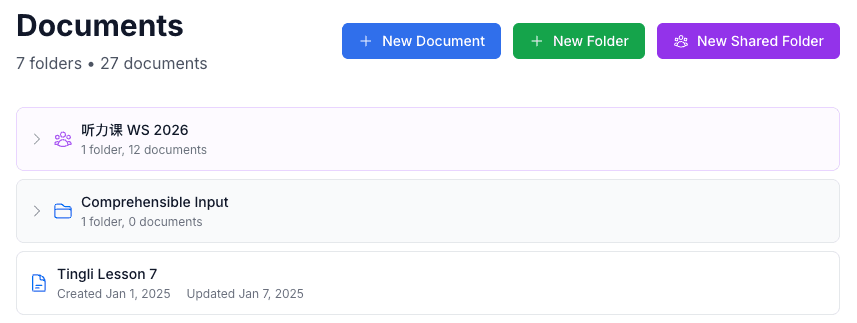
hao2learn Documents let you write your own Chinese learning content — stories, vocabulary lists, dialogues, grammar notes — in an interactive format. Every Chinese word you write becomes a tappable element in the app, so you can tap any word at any time to see its definition, pinyin, and character details.
You can also access documents that your teacher has shared with you through the app or via a link.
Document Editor
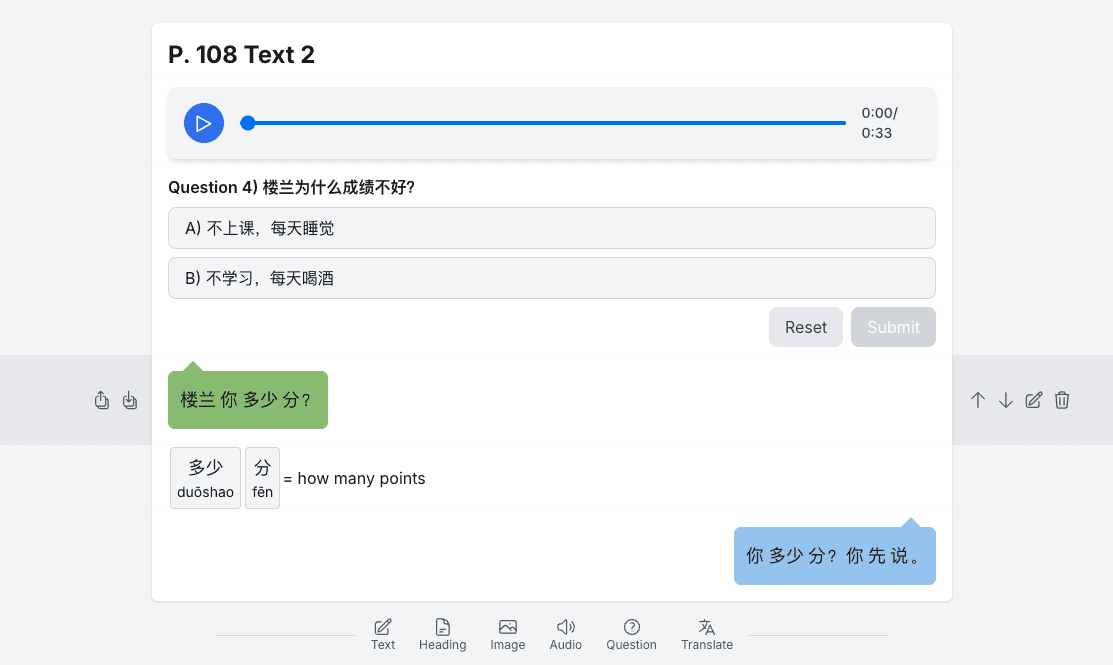
Each document is made up of rows — blocks of content stacked vertically. You can have as many rows as you like and rearrange them freely.
The editor has two modes:
- View mode — tap any Chinese word to see its definition and pronunciation.
- Edit mode — click the pencil icon on a row to edit its content. Row management controls become visible.
Adding & Removing Rows
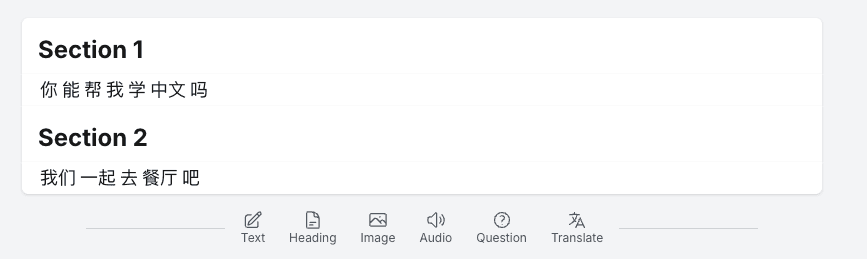
Using the bottom toolbar
At the bottom of your document there is a row toolbar with these options:
Click any icon to append a new row of that type.
Inserting between existing rows
Hover over a row to reveal the left-side controls. Click to insert a row above, or to insert one below.
Deleting a row
Hover over a row and click the Delete button on the right side. Clearing a text or heading row's content and finishing editing will also automatically delete that row.

Row Types
Heading
A large bold title for dividing your document into sections (e.g. "New Words", "Story", "My Notes"). Press Enter to confirm. An empty heading removes itself.
Text
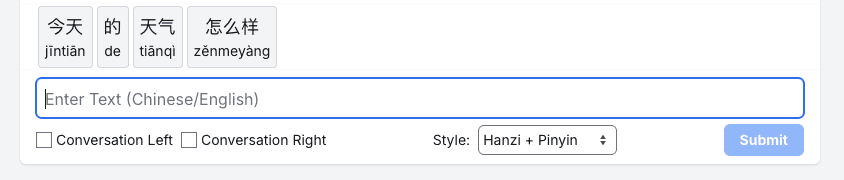
Type Chinese or English text. When you save, all Chinese words are automatically segmented and made interactive — you can tap each one in the app to look it up instantly.
While editing you can set:
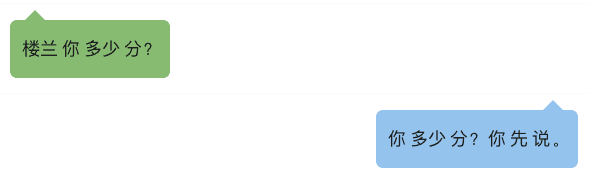
- Conversation Left / Right — displays the row as a chat bubble. Alternate left and right rows to write realistic dialogues.
- Style — controls how Chinese is shown: Hanzi + Pinyin, Hanzi Grouped, or Hanzi only.

Image
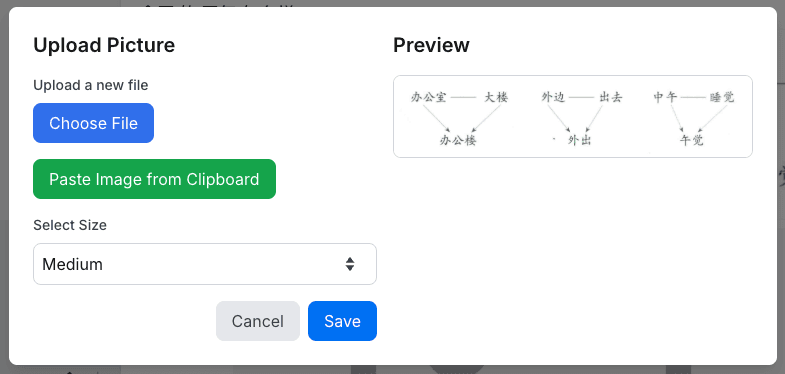
Upload an image to illustrate your notes — vocabulary pictures, screenshots of grammar explanations, photos from class, etc.
Audio
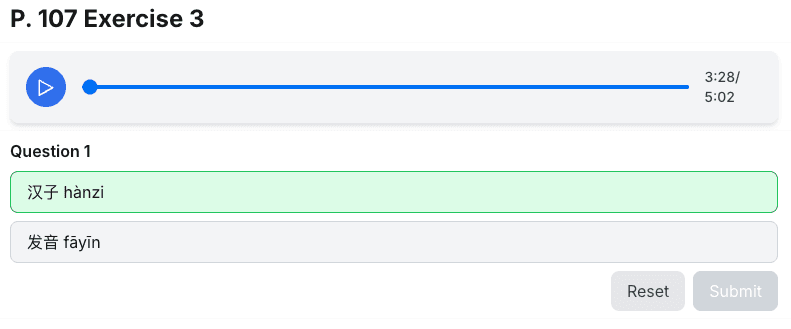
Upload a recording. Great for saving your own pronunciation practice, or storing audio from your teacher. The player is embedded directly in the document.

Question (Multiple Choice)
Add a multiple-choice question with several answer options and one correct answer. Useful for self-quizzing after reading a passage in your document.
Row Controls
Hover over any row to reveal controls on both sides.
Adds a new row above this one.
Adds a new row below this one.
Swaps with the row above.
Swaps with the row below.
Opens the row editor.
Permanently removes the row.
Text Row Features
Adjusting word boundaries
Sometimes the automatic segmentation groups characters differently than you expected. You can fix it:
- Click the pencil icon to enter edit mode on the row.
- Long-press any word block in the view.
- Choose to split it at a character position or merge it with the next word.

Dialogue / conversation mode
Tick Conversation Left or Conversation Right when editing a text row to format it as a chat bubble. Write a full dialogue by alternating left and right rows.
Display style
Use the Style dropdown in the text editor to control how Chinese is displayed in that row — helpful when you want pinyin shown for harder words but hidden for words you know well.
Accessing Class Materials
If your teacher has shared a class folder with you, they will send you a link. Open the link and:
- If you have the hao2learn app installed, it opens automatically in the app.
- Otherwise it opens in your web browser — all interactive features still work.
Inside a shared folder you can browse all documents your teacher has added. Whenever your teacher updates the content or adds new documents, the app notifies you.

Sharing Your Documents
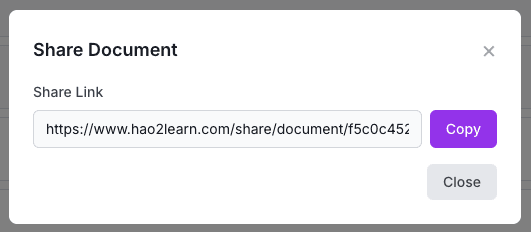
You can share any document you created with a single link — useful for sharing your writing practice with a classmate or your teacher for feedback.
- Hover over a document card on the Documents page.
- Click the Share button.
- Copy the link and send it however you like.
Anyone with the link can view the document in read-only mode — all Chinese words are tappable and interactive.